
We can go to Workflow screen and create a Workflow (I am using example of Opportunity Sales Process and stages which come with CRM 2013 Online trial)
We will first go to Settings->Process->New

Click on save . Now we start configuring the steps. We will configure the workflow for Record fields change and Click on Select:

Select the following field(As I am sending notification when record is moved to close stage)

Note: You can also configure notification when user switches Process if you Select Process in the above selection instead of stage.
Now, we will click ok and start configuring steps:
We will click on Add Step and Pick Check condition:

Click on Condition and fill the fields like suggested in the below screenshot:

Note: Please mention stage name in CAPS , else it will not work.
Now, Please click Save and close, and select a step for when condition is true. In our case, I will send a notification email to creator of opportunity, hence will pick the step for Send Email:
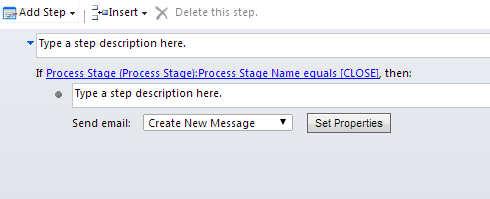
You can now click on Set Properties and set properties as mentioned below:

Click on Save and Close here and on workflow and Activate workflow:

Note: In case you want to send notification synchronous, you can convert this workflow to Real time workflow.
Now lets try it, Once i move stage of Opportunity to Close, Email is created for me!

Hope it helps!
 MSDYNAMICSBLOG BY DEEPESH
Hi Deepesh,
I am glad this article was posted so that I could counter it 🙂
How did you manage to see Process Stage, Process Selection and Process fields in the field list? I dont see them and I am on UR 1 for CRM 2013.
Hi Yogesh,
We are working on UR1 for CRM 2013 and you can see the same in the list. This are also available to be seen on CRM 2013 Online trials. Please check the same once, If you see any issues probably you can report it to Microsoft 🙂
Regards,
Deepesh
This is a great post, was looking for this since long..