
In this blog, we will learn about an exciting feature of the Canvas App which is the ability to use it offline. This means that you can create and run apps that work natively on your device without requiring a network connection. This feature is currently available only for Dataverse apps, but it opens up many possibilities for app makers and users.
Implementation:
- For creating Canvas App offline, firstly we need to enable table to use as offline.
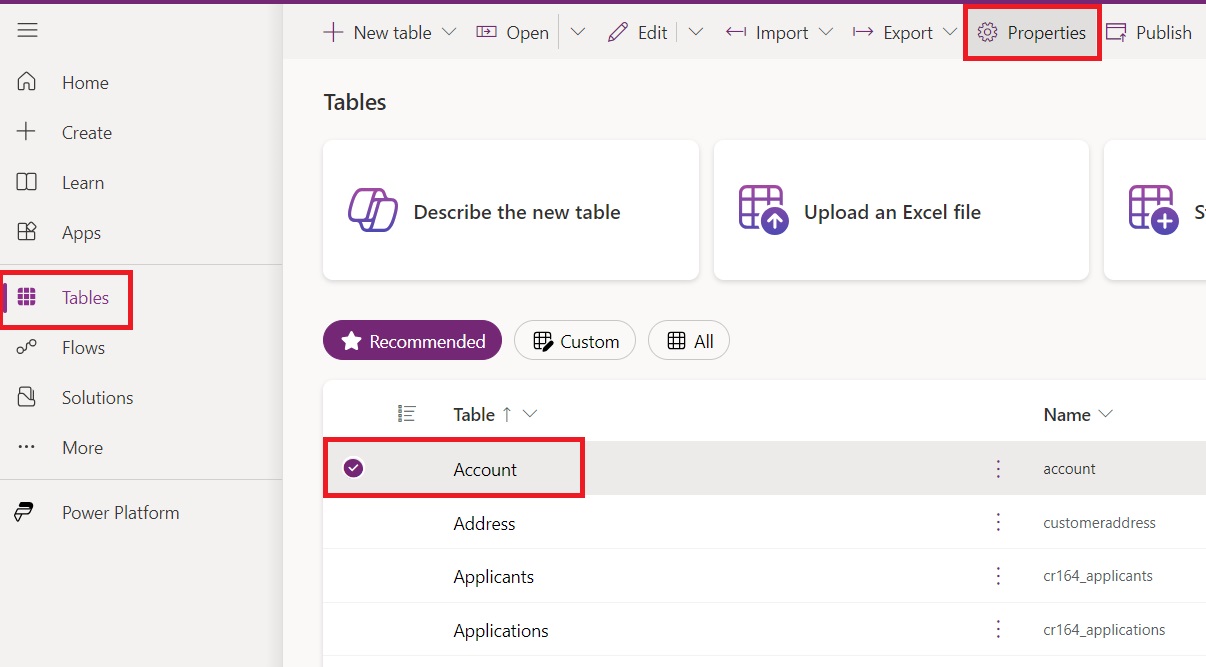
- Go to the tables list.
- Select the table you want to use as a data-source in Canvas App.
- And open the properties.
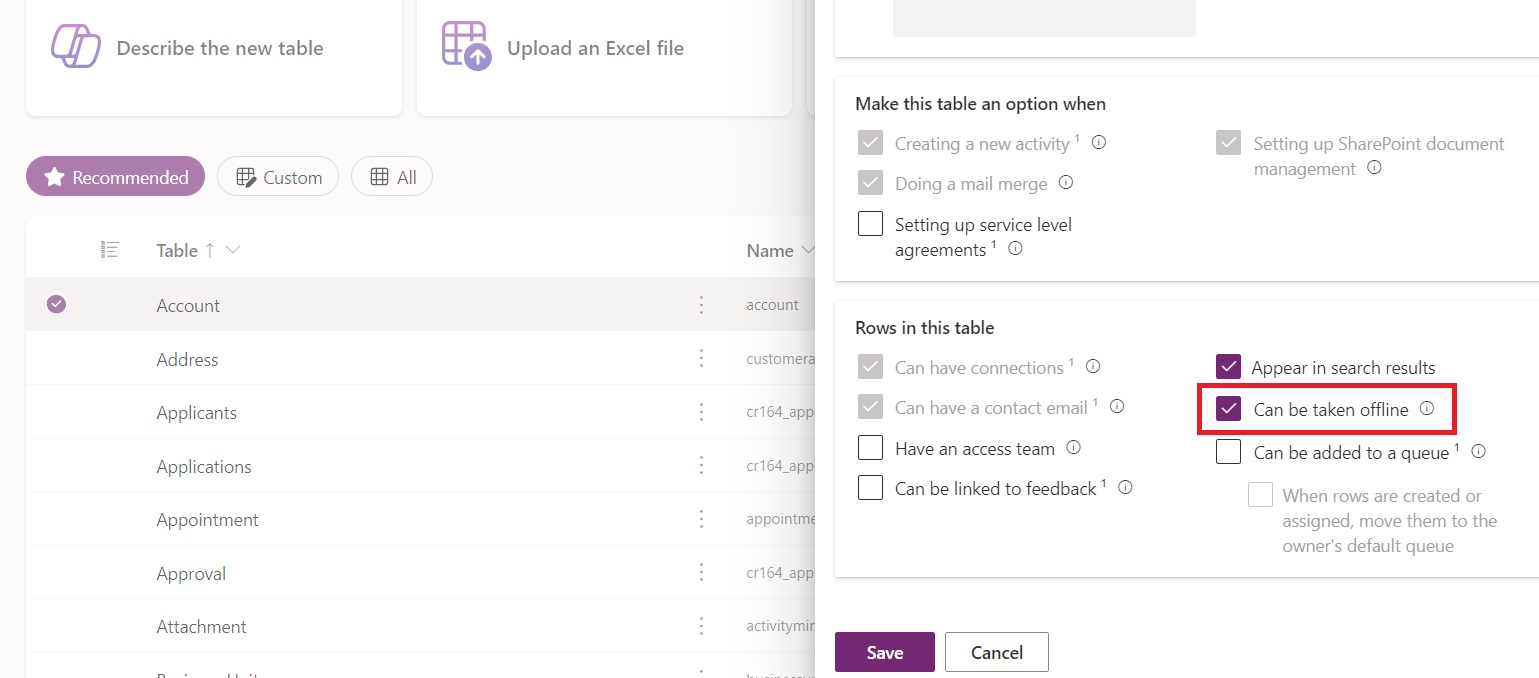
- In table properties, open advance options.
- Scroll down and enable “Can be taken offline.”
- Click on save.
- Now create a new Canvas App.
- Provide a title to your app and select format.

- You need to enable offline feature in your Canvas App also.
- Go to the “Settings.”
- In “Upcoming features” you will get “Dataverse offline” feature, turn on the radio button.

- Go to the General tab.
- On the Can be used offline (Preview) section, select the Offline profile that contains the entity you want.
- If you don’t have an existing Offline profile, choose Auto-generate to create one with the entity from the Canvas app.

- Your offline profile will look like this.

- Now go back to the app, a screen will automatically appear to sync offline data with a Globe icon, which helps user to know connectivity status.

- On “Onselect” property of globe icon, you will get this fx function.
Switch(Connection.Sync,
   ConnectionSync.Connected, Notify("Your device is connected to the network, and your app is ready to work offline.",NotificationType.Success),
   ConnectionSync.ConnectedWithWarning, Notify(Connection.LastSyncMessage,NotificationType.Warning),
   ConnectionSync.ConnectedPendingUpsync, Notify("Some data on your device must be synchronized with the server.",NotificationType.Warning),
   ConnectionSync.ConnectedError, Notify(Connection.LastSyncMessage,NotificationType.Error),
   ConnectionSync.ConnectedRefresh, Notify("Your app is currently synchronizing data with the server.",NotificationType.Information),
   ConnectionSync.NotConnected, Notify("Your device is not connected to the network, but you can keep using this app.",NotificationType.Success),
   ConnectionSync.NotConnectedWithWarning, Notify(Connection.LastSyncMessage,NotificationType.Warning),
   ConnectionSync.NotConnectedPendingUpsync, Notify("Some data on your device must be synchronized with the server. Reconnect to the network to synchronize.",NotificationType.Warning),
   ConnectionSync.NotConnectedSyncError, Notify(Connection.LastSyncMessage,NotificationType.Error))
- Let’s add a form and button to submit records.
- I have connected form to “Accounts” table.
- Your app will look like this.

- In mobile app, if you click on globe icon without any connection, you will get this notification.

- Save and publish it.
- Now open app in mobile phone.
Output:
- In the GIF given below you can see that records is getting created with any connection.

Hope it helps!
Power 365ing as usual!
Any requirements, implementation or consulting work in Power Platform or Dynamics 365 – end user, Microsoft partner or an individual?
Problem Area – Technical, Functional, Training, Development or consulting?
Me and my team are here to assist, please fill the following form for your business needs: Click here

 MSDYNAMICSBLOG BY DEEPESH